Mounting AWS S3 Bucket on Windows Local Filesystem Using Rclone as Drive or Folder
A step-by-step guide to mounting an AWS S3 bucket as a local folder, drive letter, or background service on Windows using rclone.
Introduction
Amazon S3 is one of the most widely used object storage services in the cloud. But navigating the AWS Console or running CLI commands every time you need to access files can be tedious. What if your S3 bucket appeared as a regular folder or drive letter in Windows Explorer — just like a USB drive?
In this guide, I’ll walk you through how to mount an AWS S3 bucket as a local filesystem on Windows using rclone — a powerful, open-source command-line tool for managing cloud storage — paired with WinFsp, which enables FUSE-style filesystem mounting on Windows.
By the end of this guide you’ll be able to:
- Browse and manage S3 files directly from Windows Explorer
- Mount the bucket as a folder path or a drive letter (e.g.
Z:) - Run the mount silently in the background
- Auto-mount the bucket on every Windows startup
Step 1: Download and Install rclone
Go to the official rclone downloads page and grab the Windows AMD64 zip:
🔗 https://rclone.org/downloads/
Step 2: Install WinFsp
rclone requires WinFsp (Windows File System Proxy) to mount remote storage as a local filesystem. Without it, mounting will fail with:
1
Fatal error: failed to mount FUSE fs: cgofuse: cannot find winfsp
Download and install the latest WinFsp release:
Run the installer with default settings. No reboot is required — just reopen your terminal after installation.
Step 3: Create an IAM User and Access Key
rclone needs AWS credentials to authenticate with S3. You can use an existing IAM user or create a new one.
Go to the AWS IAM Console → Users → Create user (or select an existing user).
Under Security credentials → Access keys → Create access key.
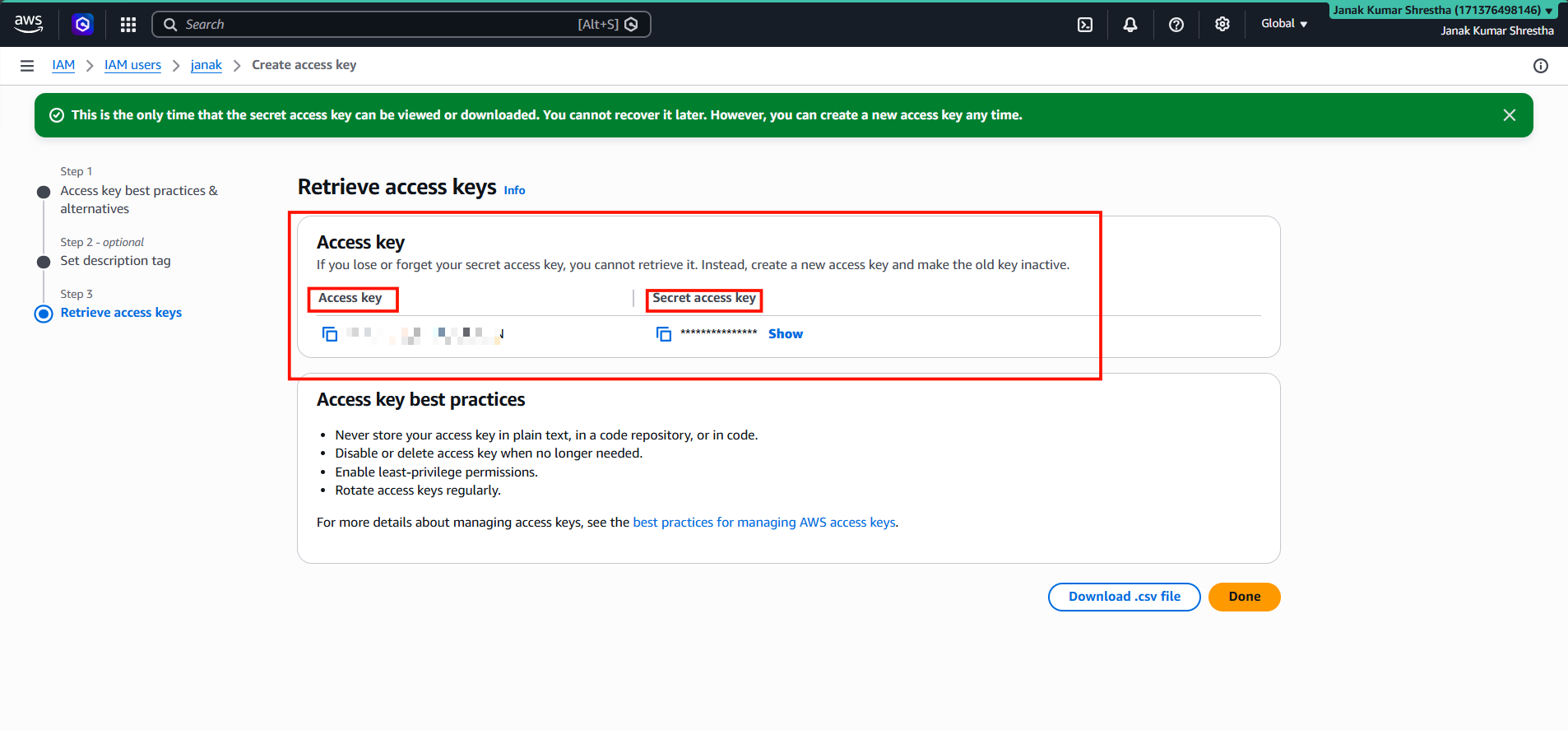
Save your Access Key ID and Secret Access Key — you’ll need them in the next step.
Step 4: Configure rclone
Run the rclone configuration wizard:
1
rclone config
Follow the interactive prompts to create a new S3 remote:
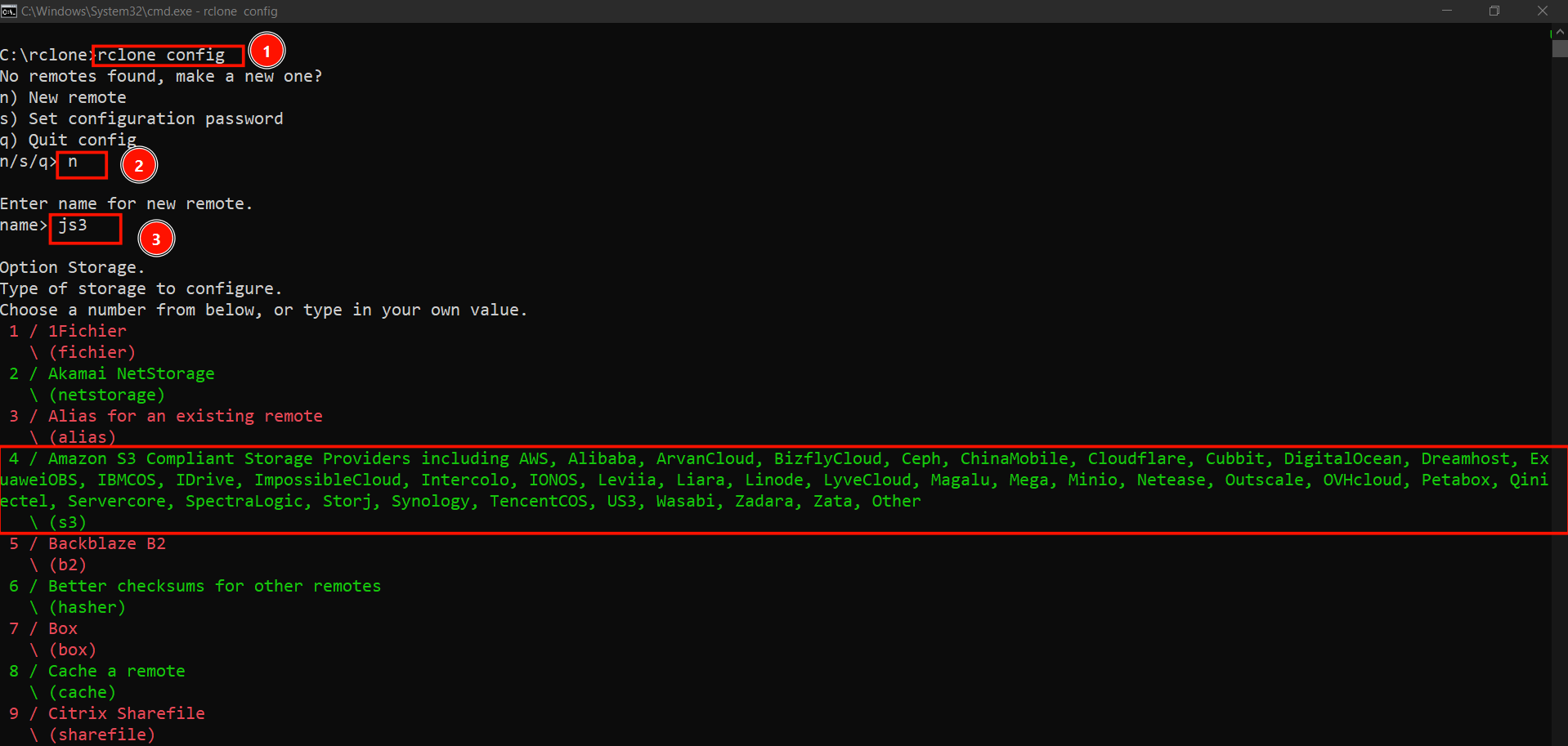
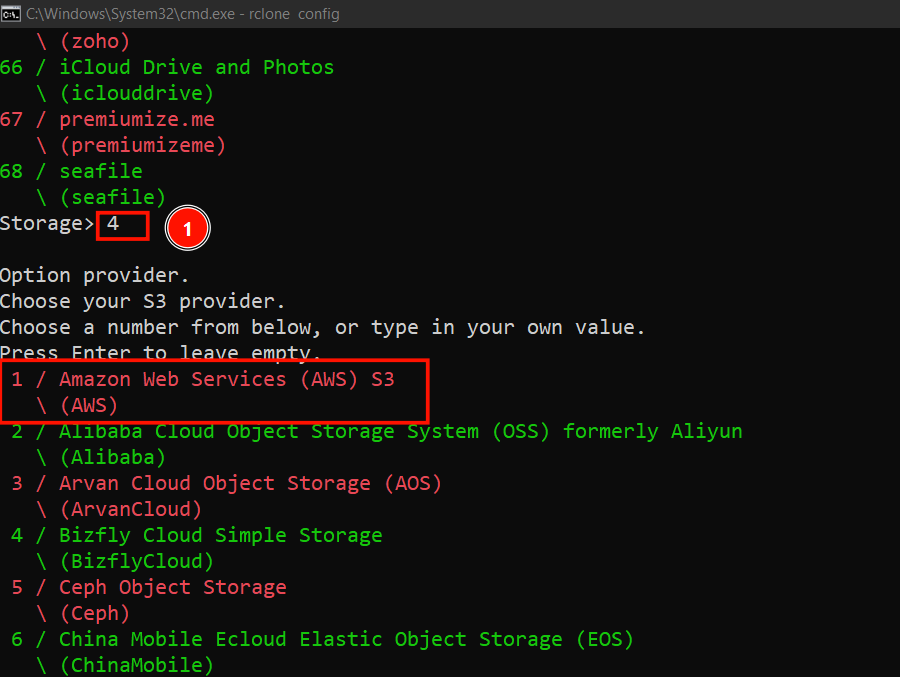
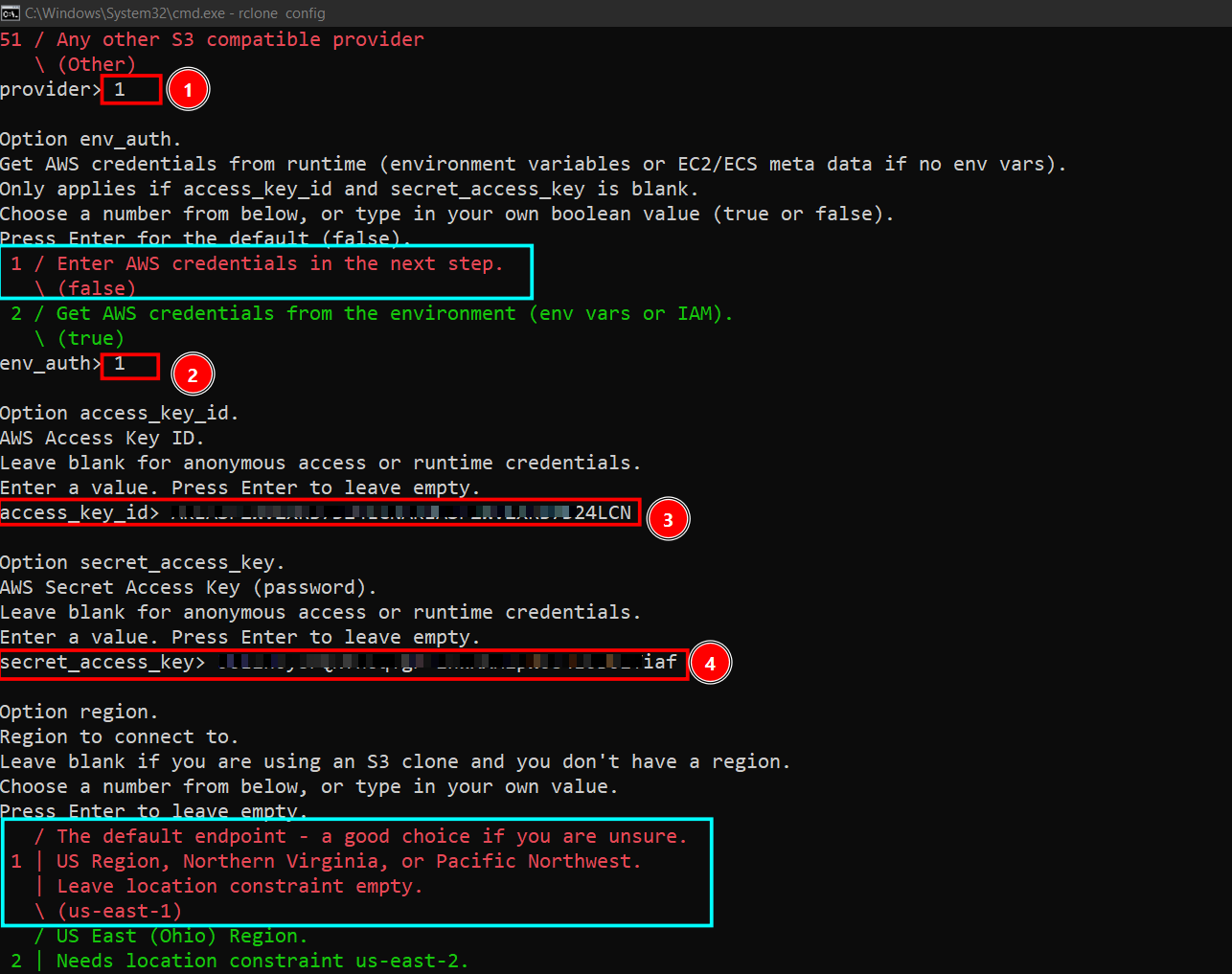
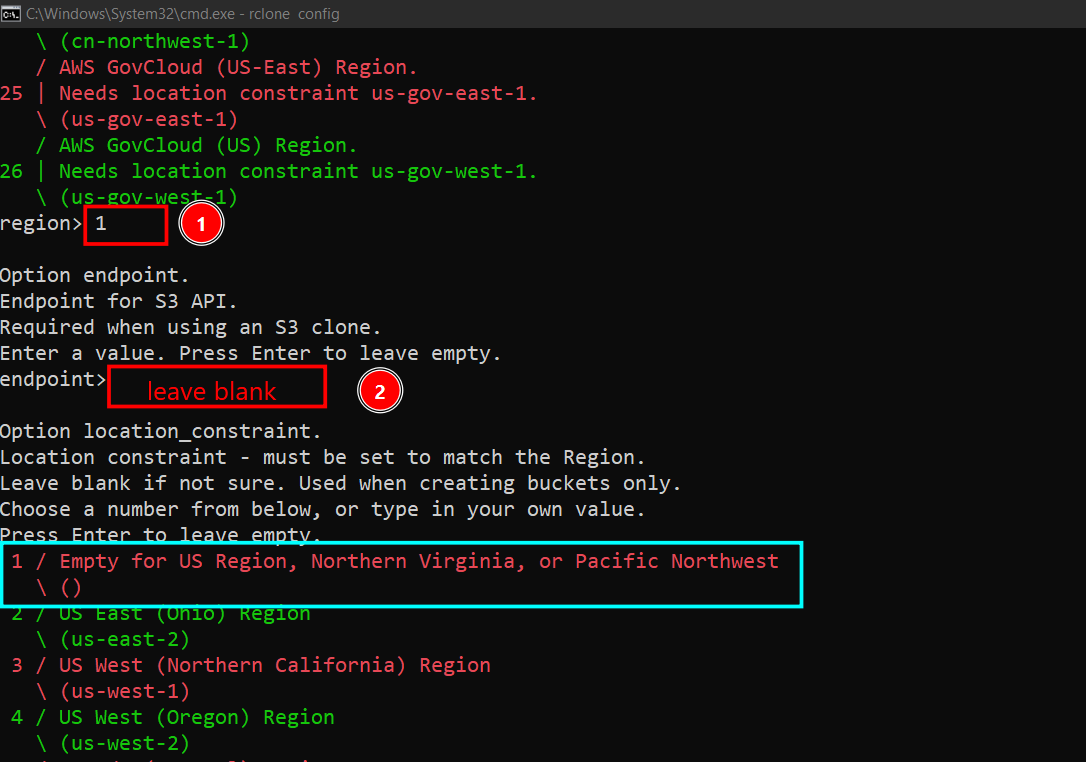
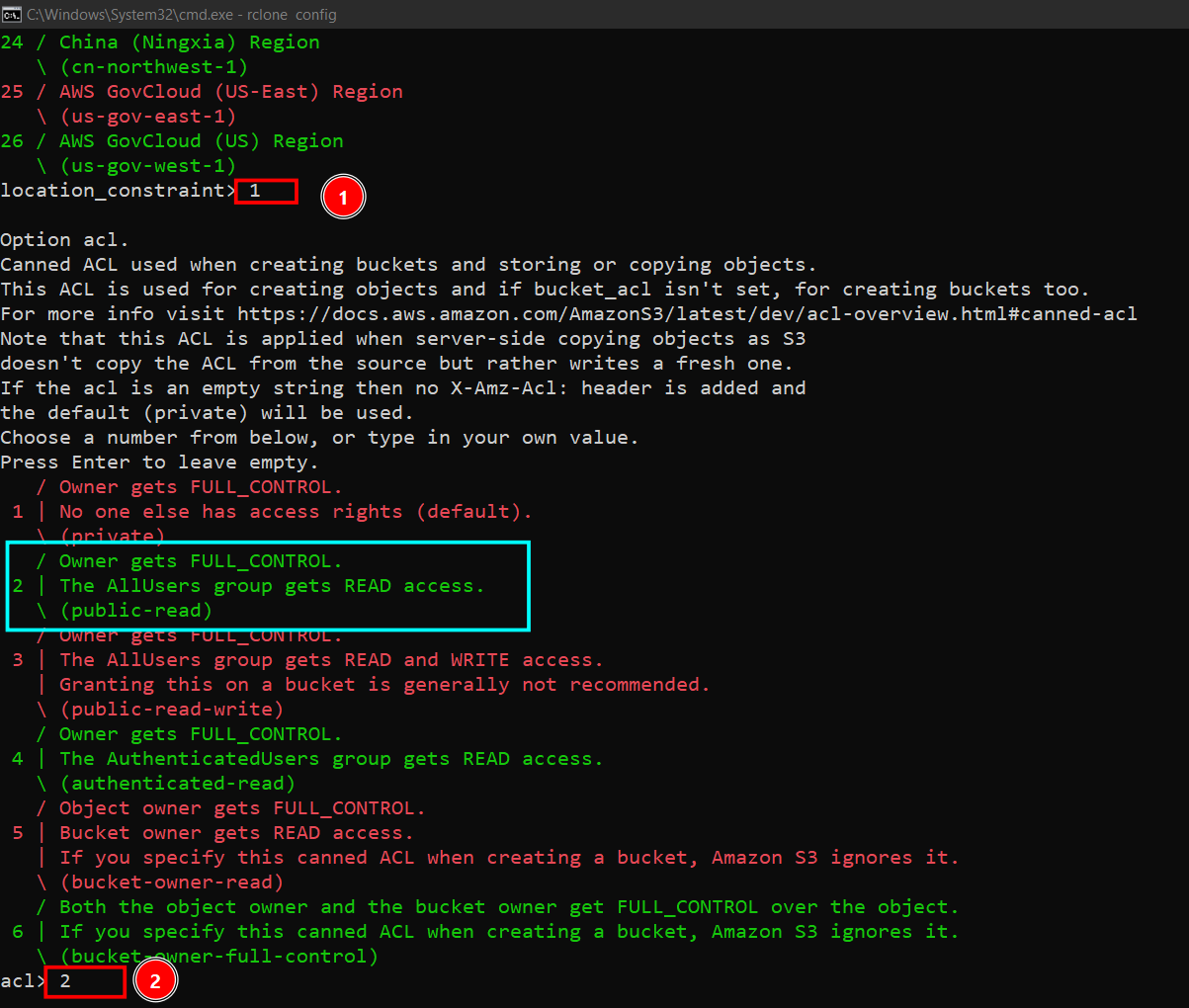
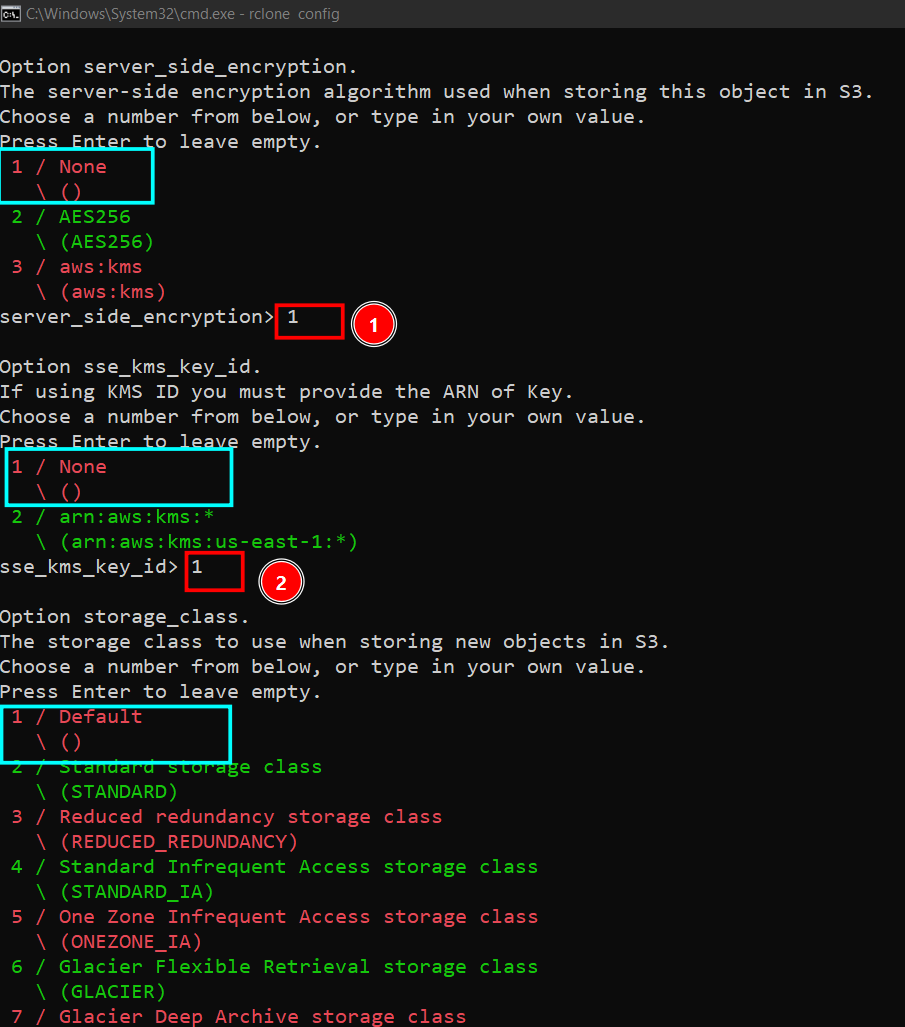
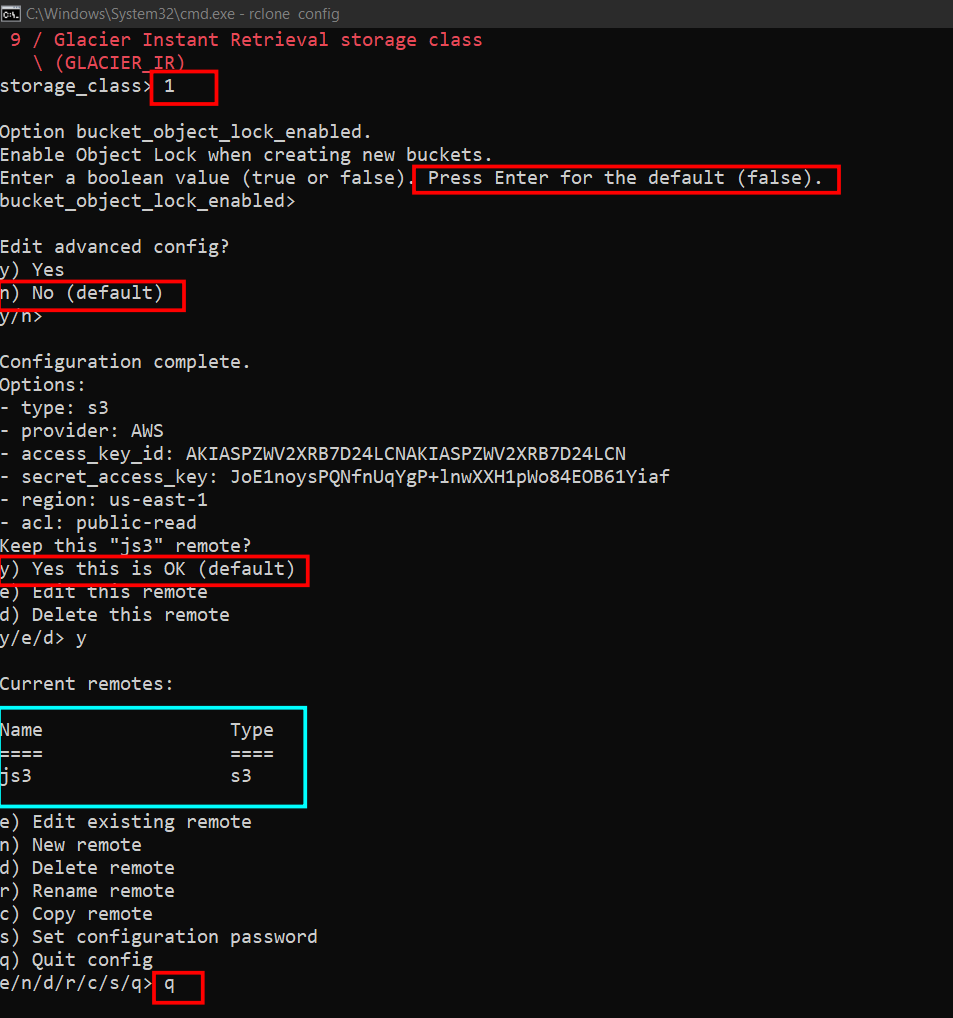
Verify the remote
1
2
3
4
5
rclone listremotes
# Output: js3:

rclone ls js3:janak-shrestha
# Lists the contents of your bucket
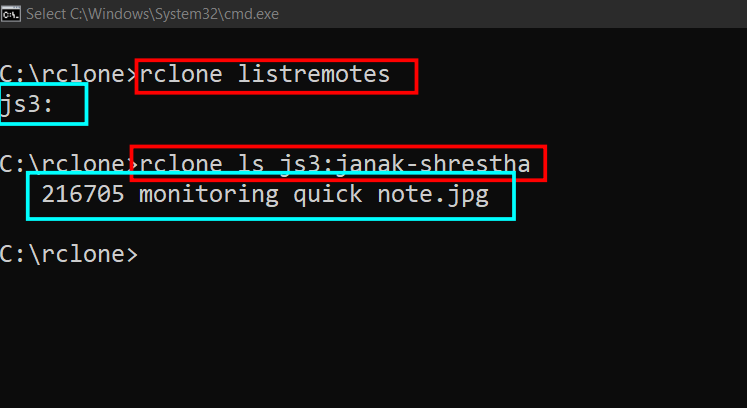
Tip: If you see
InvalidAccessKeyIderrors, open the rclone config file atC:\Users\YourName\AppData\Roaming\rclone\rclone.confand verify the credentials are correct.
Step 5: Mount the S3 Bucket
Now the fun part. rclone supports multiple mounting styles depending on your workflow.
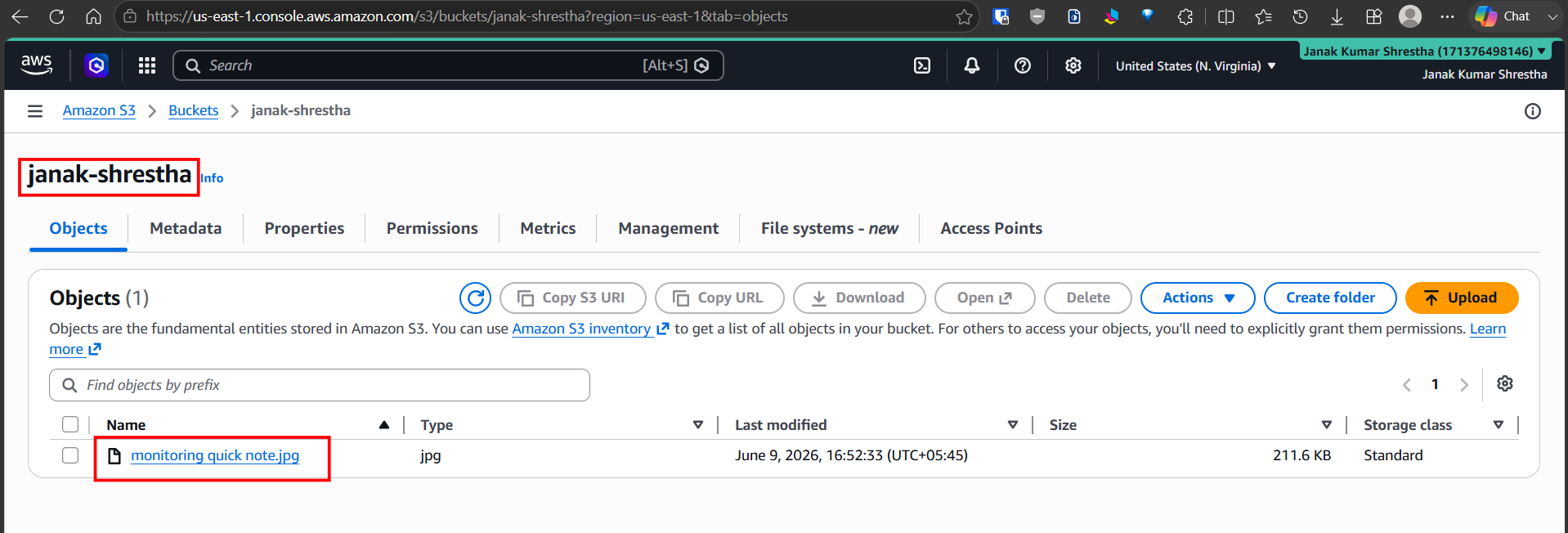
Mount as a Folder
1
rclone mount js3:janak-shrestha C:\Users\Jack\Desktop\My-s3bucket --vfs-cache-mode full --links
| Flag | Description |
|---|---|
--vfs-cache-mode full | Enables full local caching for read/write support |
--links | Translates symlinks so they work correctly on Windows |
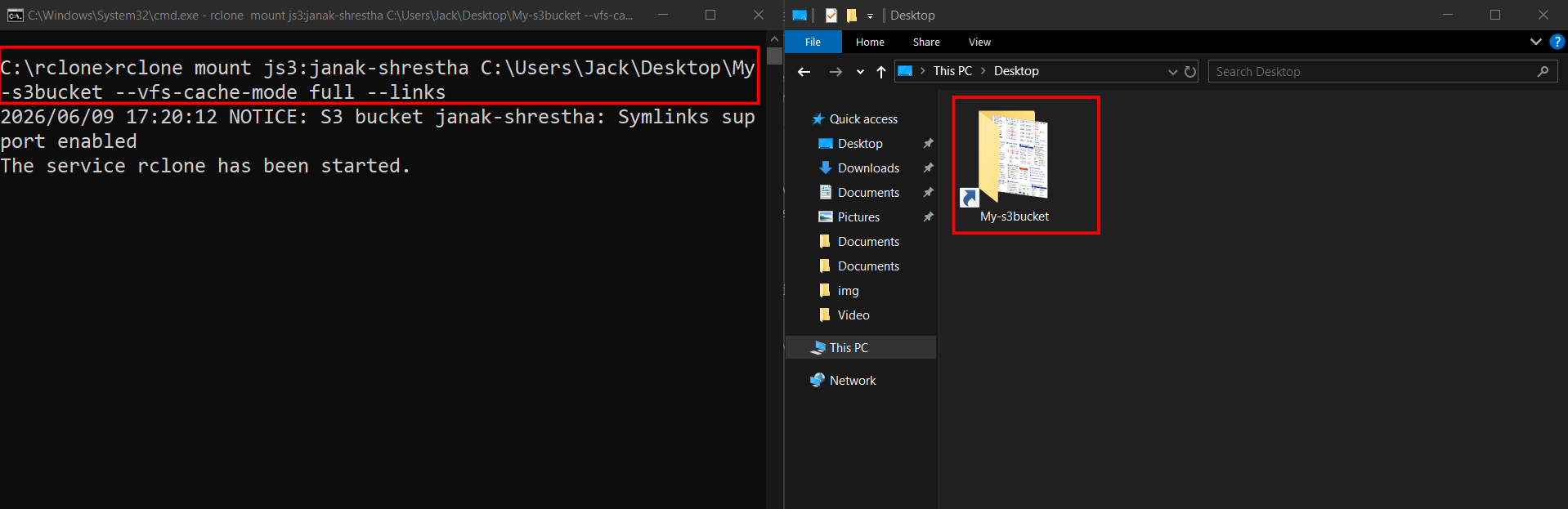
The terminal window stays open while the mount is active. Do not close it — closing it unmounts the bucket.
Mount as a Drive Letter
For a more native Windows experience, mount as a drive letter:
1
rclone mount js3:janak-shrestha Z: --vfs-cache-mode full --links
Your S3 bucket will appear as Z: in Windows Explorer, just like a local disk.
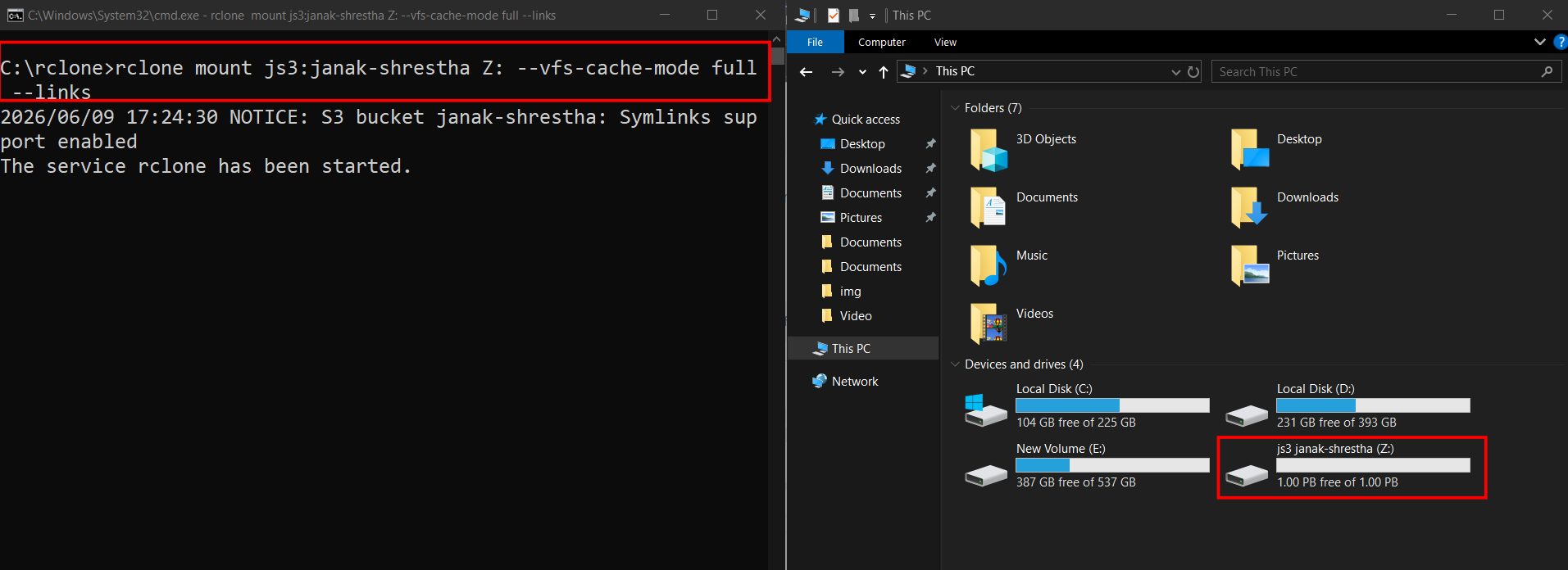
Run in Background (No Terminal Window)
To mount silently without keeping a terminal open, add the --no-console flag:
1
rclone mount js3:janak-shrestha Z: --vfs-cache-mode full --links --no-console
Auto-Mount on Windows Startup
To mount the bucket automatically every time you log in:
- Create a file named
mount-s3.batwith the following content:
1
2
@echo off
C:\rclone\rclone.exe mount js3:janak-shrestha Z: --vfs-cache-mode full --links --no-console
- Press
Win + R, typeshell:startup, and press Enter - Copy
mount-s3.batinto the Startup folder that opens
The bucket will now mount automatically on every login.
Conclusion
You now have your AWS S3 bucket mounted as a local filesystem on Windows using rclone. This makes it easy to drag-and-drop files, open S3 objects in any Windows application, and manage cloud storage without touching the AWS Console.
What we covered:
- Downloading and installing rclone and WinFsp
- Creating an IAM user with the correct S3 permissions
- Configuring rclone with AWS credentials
- Mounting the bucket as a folder, drive letter, and background service
- Setting up auto-mount on startup
References
- rclone S3 documentation
- rclone mount flags reference
- WinFsp releases
- AWS IAM documentation
- AWS S3 default encryption
Other Essential Rclone Commands
Rclone is extremely powerful with S3 — here’s what you can do:
Bucket & File Operations
# List all buckets
rclone lsd js3:

# List files in a bucket
rclone ls js3:my-bucket

# List with sizes and dates
rclone lsl js3:my-bucket

# List only directories
rclone lsd js3:my-bucket

# Tree view
rclone tree js3:my-bucket
Upload & Download
# Upload a single file
rclone copy C:\file.txt js3:my-bucket/

# Upload entire folder
rclone copy C:\myfolder js3:my-bucket/myfolder

# Download a file
rclone copy js3:my-bucket/file.txt C:\Downloads\

# Download entire bucket
rclone copy js3:my-bucket C:\local-backup
Sync (One-way mirror)
# Sync local → S3 (deletes files in S3 not present locally)
rclone sync C:\myfolder js3:my-bucket --progress

# Sync S3 → local
rclone sync js3:my-bucket C:\myfolder --progress

# Dry run first (see what WOULD happen without doing it)
rclone sync C:\myfolder js3:my-bucket --dry-run
syncdeletes files at the destination that don’t exist at the source. Always--dry-runfirst.
Bucket Management
# Create a bucket
rclone mkdir js3:new-bucket

# Delete empty bucket
rclone rmdir js3:empty-bucket

# Delete bucket with all contents (DANGEROUS)
rclone purge js3:my-bucket

# Delete a single file
rclone deletefile js3:my-bucket/old-file.txt

# Delete all files but keep bucket
rclone delete js3:my-bucket
Copy Between Buckets (Even Cross-Account)
# Copy between two buckets in same account
rclone copy js3:bucket-a js3:bucket-b

# Copy between two different AWS accounts/remotes
rclone copy js3:my-bucket aws2:destination-bucket

# Sync across regions
rclone sync js3:us-bucket js3:ap-bucket
This is server-side when possible — data flows directly between S3 buckets without passing through your machine.
Encryption (rclone Crypt)
Encrypt files transparently before uploading to S3:
# First create an encrypted remote on top of S3
rclone config
# Type: crypt
# Remote: js3:my-bucket/encrypted
# Set password when prompted
Then use it like any other remote:
# Files are encrypted on upload, decrypted on download automatically
rclone copy C:\sensitive-data crypt-remote:
rclone mount crypt-remote: C:\secure-mount --vfs-cache-mode full
Storage Analysis
# Total size of a bucket
rclone size js3:my-bucket

# Size of a specific folder
rclone size js3:my-bucket/logs

# Count files and size
rclone size js3:my-bucket --human-readable
Serve S3 as HTTP/FTP/WebDAV
# Serve bucket as HTTP server (access via browser)
rclone serve http js3:my-bucket --addr :8080

# Serve as FTP server
rclone serve ftp js3:my-bucket --addr :2121

# Serve as WebDAV (mount in other apps)
rclone serve webdav js3:my-bucket --addr :8081

# Serve as SFTP
rclone serve sftp js3:my-bucket --addr :2222
Bandwidth & Performance Tuning
# Limit upload speed (useful on metered connections)
rclone copy C:\folder js3:my-bucket --bwlimit 10M

# Increase transfer parallelism
rclone copy C:\folder js3:my-bucket --transfers 16 --checkers 16

# Use multipart upload for large files
rclone copy largefile.iso js3:my-bucket --s3-upload-cutoff 100M --s3-chunk-size 50M

# Progress bar
rclone copy C:\folder js3:my-bucket --progress
Bisync (Two-way Sync)
# Two-way sync between local and S3 (like Dropbox behavior)
rclone bisync C:\myfolder js3:my-bucket --resync
Mount with Advanced Options
# Mount read-only (safe for production data)
rclone mount js3:my-bucket C:\s3bucket --read-only

# Mount with cache size limit
rclone mount js3:my-bucket C:\s3bucket --vfs-cache-mode full --vfs-cache-max-size 10G

# Mount with custom cache directory
rclone mount js3:my-bucket C:\s3bucket --vfs-cache-mode full --cache-dir D:\rclone-cache
Deduplicate & Check
# Find duplicate files in a bucket
rclone dedupe js3:my-bucket

# Verify local files match S3 (checksum comparison)
rclone check C:\local-folder js3:my-bucket

# Check with hashes
rclone check C:\local-folder js3:my-bucket --one-way
Quick Summary Table
| Category | Command |
|---|---|
| Mount bucket | rclone mount |
| Upload/Download | rclone copy |
| One-way mirror | rclone sync |
| Two-way sync | rclone bisync |
| Encrypt data | rclone crypt remote |
| Serve as HTTP/FTP | rclone serve |
| Analyze storage | rclone size |
| Cross-bucket copy | rclone copy remote1: remote2: |
| Verify integrity | rclone check |
rclone essentially gives you a Swiss Army knife for S3 — backup, sync, mount, encrypt, serve, and analyze all from one tool.