Installation of LAMP along with PHPMyAdmin on Debian in simple steps.
set up a LAMP stack (Linux, Apache, MariaDB/MySQL, PHP) with phpMyAdmin on Debian step by step.
Installation of LAMP along with PHPMyAdmin on Debian in simple steps.
Set up a LAMP stack (Linux, Apache, MariaDB/MySQL, PHP) with phpMyAdmin on Debian step by step.
🔹 Install Apache Web Server
1
sudo apt install apache2 -y
Enable and start:
1
2
sudo systemctl enable apache2
sudo systemctl start apache2
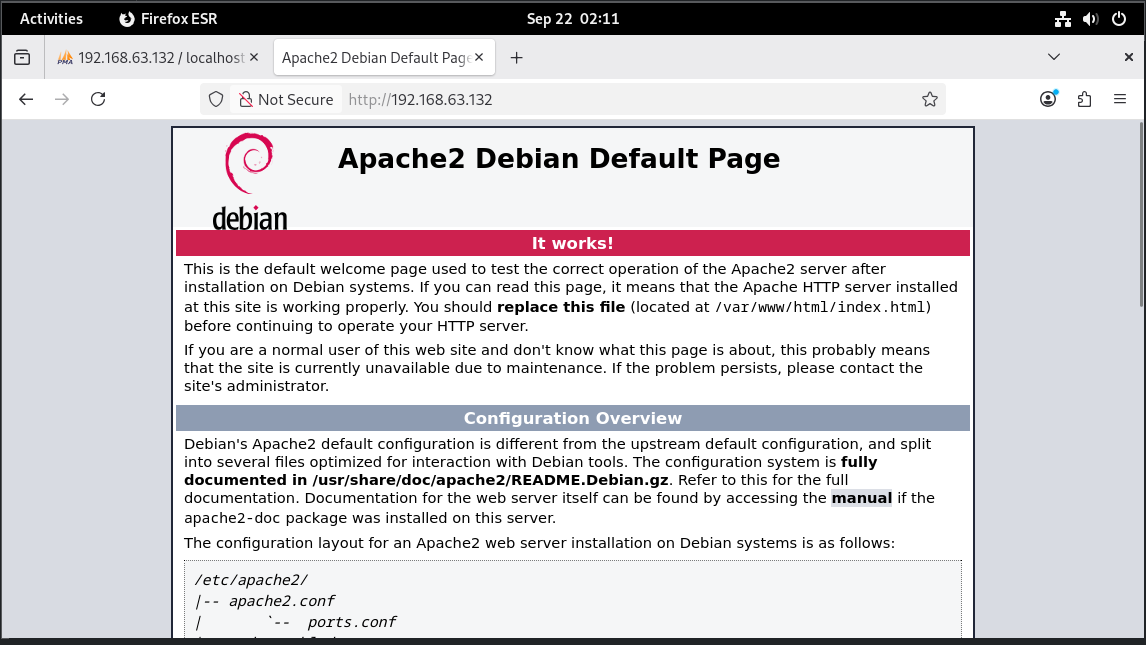
Test: Open http://192.168.63.132 in a browser. You should see the Apache default page.
🔹 Install MariaDB (or MySQL)
1
sudo apt install mariadb-server -y
Secure the installation:
1
sudo mysql_secure_installation
- Set root password
- Remove anonymous users
- Disallow root login remotely
- Remove test database
- Reload privileges
👉 Login to test:
1
sudo mariadb -u root -p
mariadb→ start the MariaDB client (command-line tool)-u root→ log in as the root user-p→ ask for the password
🔹 Install PHP
1
sudo apt install php libapache2-mod-php php-mysql -y
libapache2-mod-php→ lets Apache run PHP filesphp-mysql→ allows PHP to talk to MySQL/MariaDB
Check PHP version:
1
php -v
🔹 Install phpMyAdmin
1
sudo apt install phpmyadmin -y
During installation:
- Choose
apache2when asked for web server. - Select “Yes” to configure database for phpMyAdmin.
- Set a password for phpMyAdmin.
Enable phpMyAdmin in Apache
On Debian, the installer does not always add the config automatically. You need to enable it:
1
sudo ln -s /etc/phpmyadmin/apache.conf /etc/apache2/conf-enabled/phpmyadmin.conf
That command creates a symbolic link so Apache knows about phpMyAdmin’s configuration.
ln -s→ makes a symlink (shortcut)/etc/phpmyadmin/apache.conf→ the original phpMyAdmin config file/etc/apache2/conf-enabled/phpmyadmin.conf→ where Apache looks for enabled configs
Then reload Apache:
1
sudo systemctl reload apache2
🔹 Access phpMyAdmin
Open in browser:
1
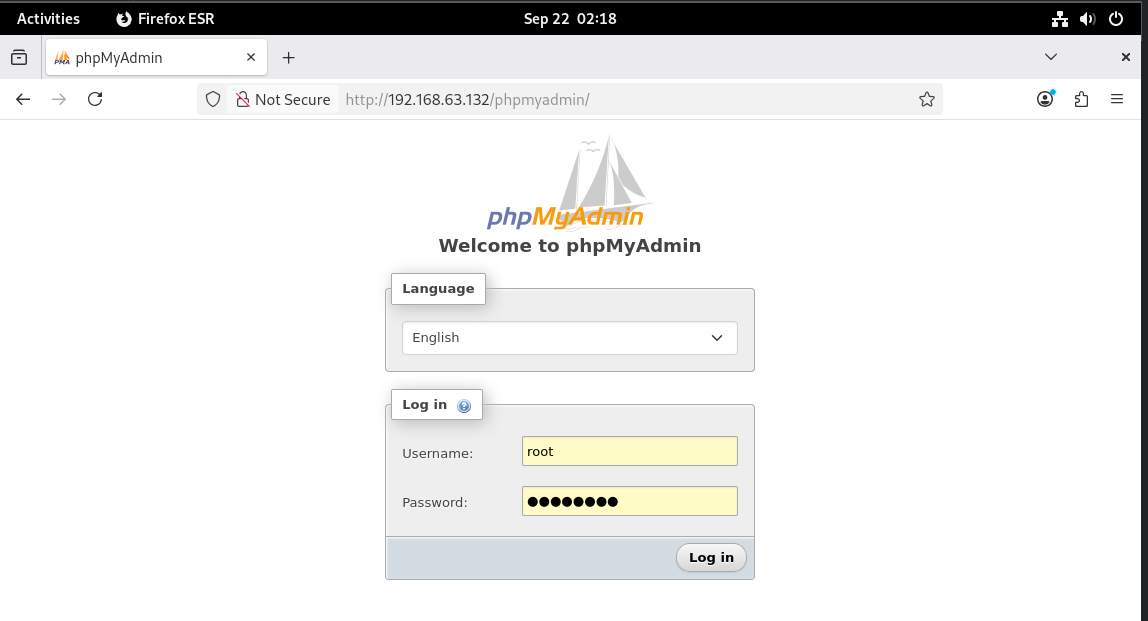
http://192.168.63.132/phpmyadmin
Login with MariaDB username/password.
Thank You
This post is licensed under CC BY 4.0 by the author.